Configure validator
Each message model version in Semantic Treehouse can have one or more syntax bindings (XML, JSON, or RDF). For each syntax binding, maintainers can configure validation: which schemas to check against, which business rules to apply, and which example messages to offer users.
Configuring the validator for a message model requires you to have the Maintainer role for that message model. See Roles and permissions for details.
Accessing the configuration
A syntax binding ties a message model version to a specific serialization format: XML, JSON, or RDF. A single version can have multiple syntax bindings. For example, one for XML and one for JSON. Each syntax binding holds its own validation configuration: which schemas to check against, which business rules to apply, and which example messages to offer. To configure the validator, you edit these syntax bindings.
- Navigate to a message model specification page.
- Click the ✎ Edit button next to the specification header.
- Click the pencil button (✎) next to the specification version you wish to edit
- On the version edit page, open the Validator tab. Here you can add new syntax bindings or edit existing ones.
- Click the pencil icon on an existing syntax binding to open its configuration form.
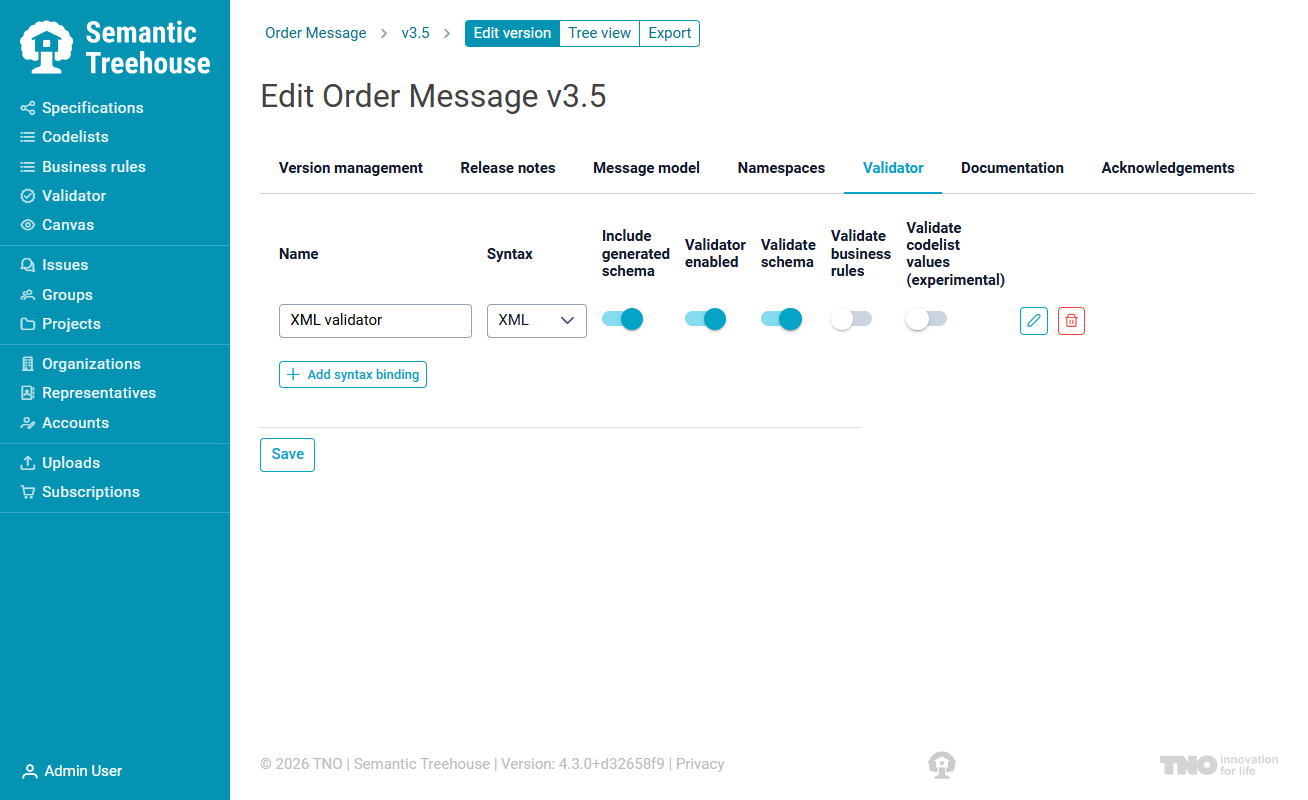
The configuration form has four tabs: Options, Validation, Examples, and Examples from root element.
Options tab
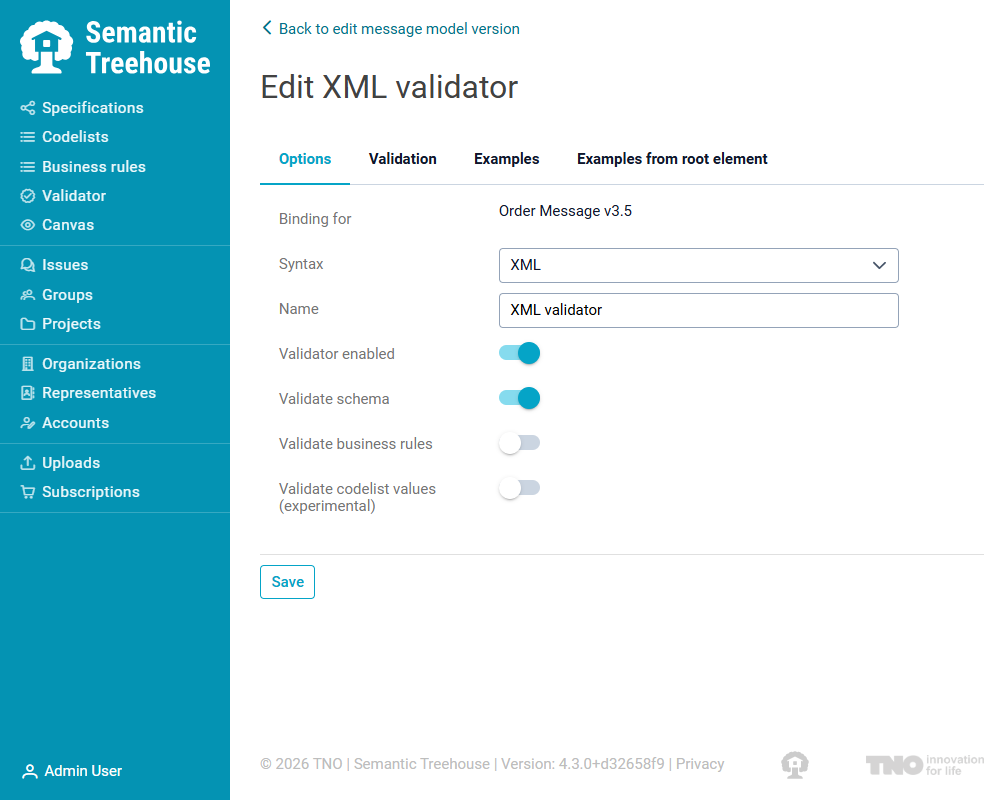
The Options tab controls general settings for this syntax binding:
| Setting | Description |
|---|---|
| Binding for | Shows which message model version this binding belongs to (read-only). |
| Syntax | The syntax type: XML, JSON, or RDF. |
| Name | A display name for this syntax binding (e.g., "UBL 2.1 XML"). |
| Validator enabled | Toggle whether this binding appears in the Validator for users to validate against. |
| Validate schema | Toggle structural schema validation (XSD for XML, JSON Schema for JSON, SHACL for RDF). |
| Validate business rules | Toggle Schematron-based validation. Only available for XML syntax. |
| Validate codelist values (experimental) | Toggle codelist value checking. Only available for XML syntax. |
Validation tab
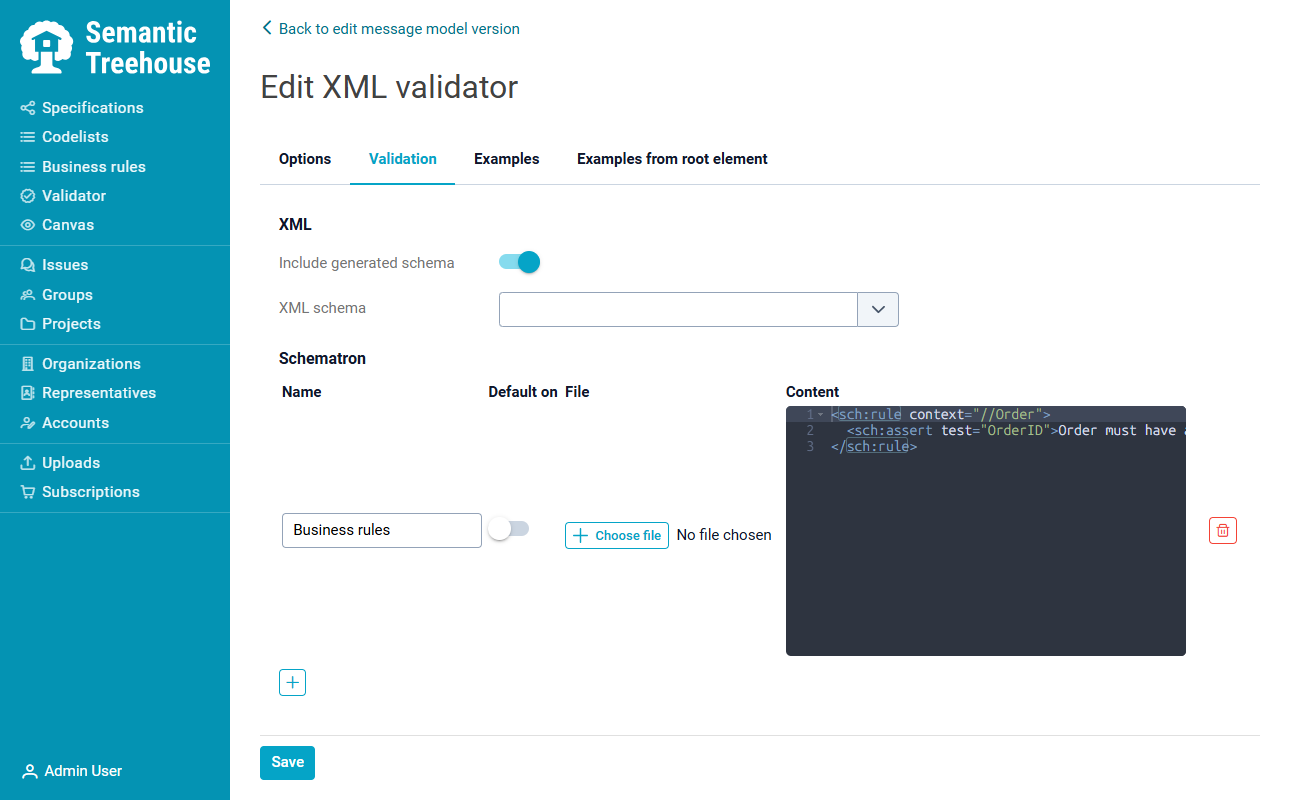
The Validation tab shows different configuration options depending on the selected syntax type.
XML validation
- Include generated schema: when enabled, the schema auto-generated from the message model is included in validation.
- XML schema: select a specific XSD file to validate against (via autocomplete file picker).
- Schematron: a table where you manage Schematron rule sets:
| Column | Description |
|---|---|
| Name | A label for this Schematron rule set (e.g., "Business rules", "Codelist validation"). |
| Default on | When toggled on, this rule set is checked by default in the validator UI. Users can still uncheck it. |
| File | Upload a Schematron file (.sch) or compiled XSLT (.xsl). |
| Content | Alternatively, write or paste Schematron XML directly in the inline code editor. |
Use the "Add" button to add a new Schematron entry, or the remove button to delete one.
JSON validation
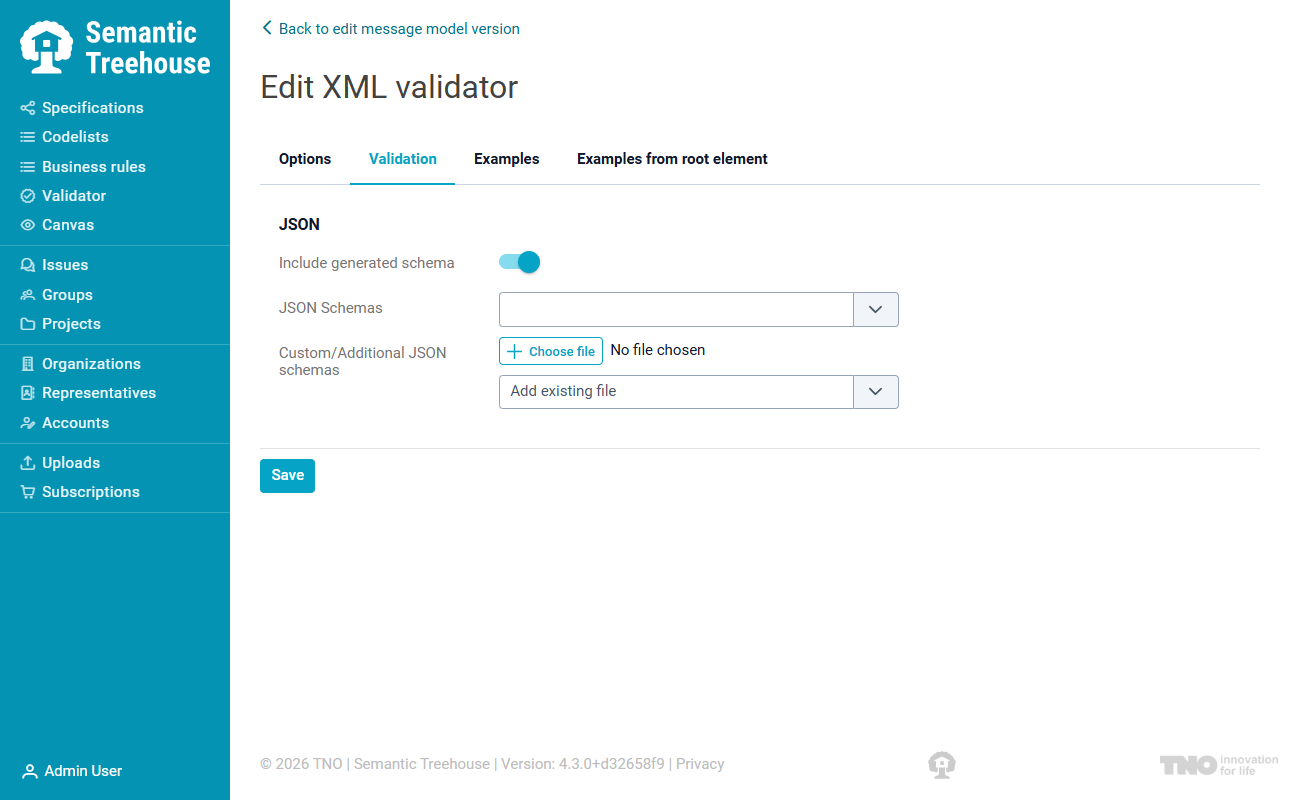
- Include generated schema:
When enabled, the schema auto-generated from the message model is included in validation. - JSON Schemas:
Select one or more JSON Schema specification versions (from your environment's JSON Schema specs) via autocomplete. Remove entries with the remove button. - Custom/Additional JSON schemas: Upload extra JSON Schema files that should be included in validation.
RDF validation
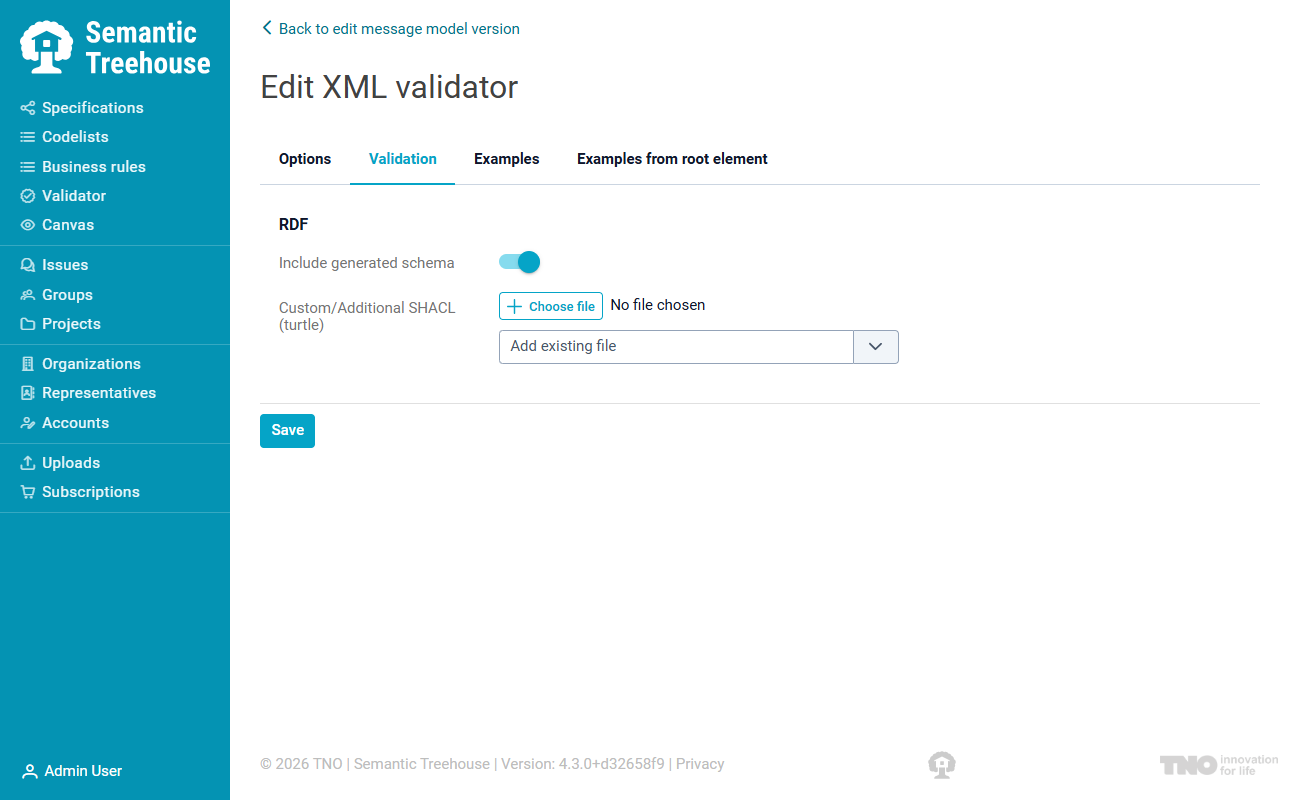
- Include generated schema:
When enabled, the SHACL shapes auto-generated from the message model are included in validation. - Custom/Additional SHACL (turtle)
upload custom SHACL constraint files in Turtle format.
Examples tab
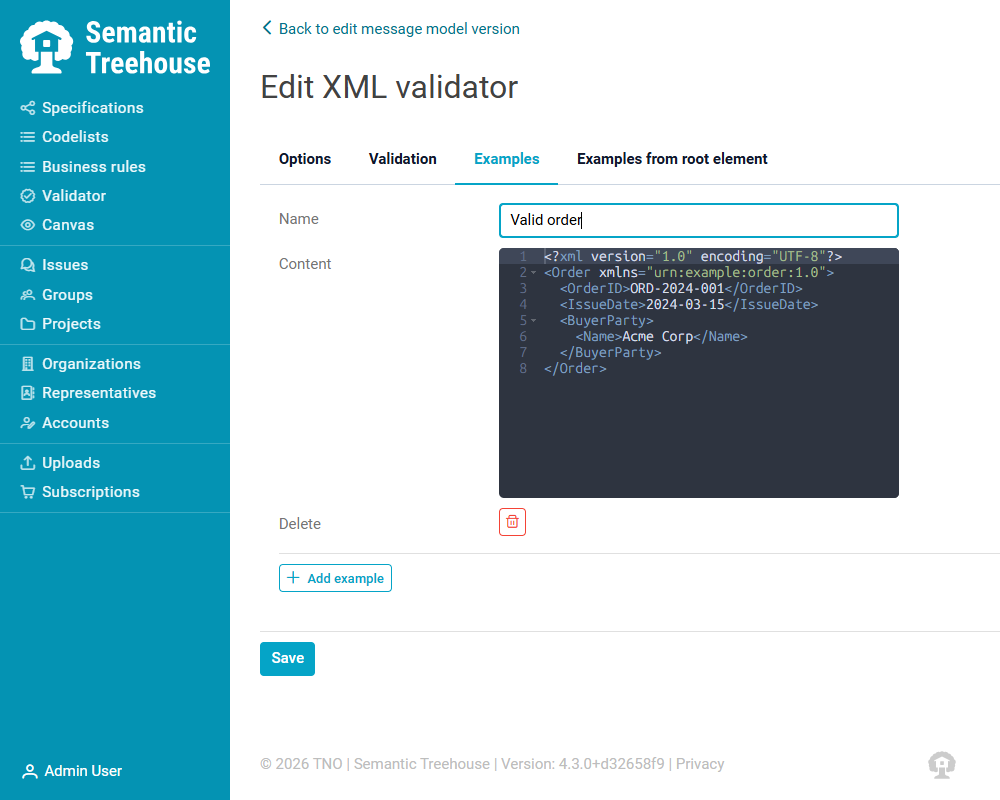
Attach example messages that users can load directly in the validator UI. Each example has:
- Name: a descriptive label (e.g., "Valid invoice", "Credit note with Dutch supplier").
- Content: the message content, editable in a code editor.
Click "Add example" to add a new example, or the delete button to remove one.
Examples from root element
This read-only tab displays example messages that were attached to the message model's root element. These are inherited automatically and cannot be edited here: edit them on the message model element itself.