Taxonomies
Semantic Treehouse supports taxonomies as a specification type for managing hierarchical classification systems. Taxonomies organize concepts into a tree structure going from broad categories to more specific terms. They are commonly used in domains such as product classification, topic categorization and organizational structures.
In practice, the broader/narrower structure also fits meronomies (part-whole hierarchies), such as e.g. a building norm that organizes building elements, their components, and the materials those components are made of.
Taxonomies differ from the other semantic specification types in Semantic Treehouse:
- Unlike ontologies, which model rich conceptual relationships (properties, constraints, inheritance), taxonomies focus on hierarchical classification of concepts.
- Unlike codelists, which are flat lists of allowed values, taxonomies have a multi-level tree structure where broader concepts contain narrower ones.
Creating a taxonomy
Creating a taxonomy follows the standard specification workflow:
- Navigate to the Specifications screen.
- Click the '+' icon and select Taxonomy.
- Fill in the specification fields (name, title, project, description) as described in Manage specifications.
- Click Save to create the taxonomy specification.
Now you have a taxonomy specification, but it is empty. The next step is to create a version to hold the taxonomy content. This can be done from scratch.
- From scratch: Click Create new version on the specification page, fill in the version fields and click Create. This creates a new version with no concepts.
- From import: Make sure you've saved the specification first. Now click Import SKOS RDF on the specification page to go to the import page. Select a file to import, type a version label, and select the language for language tagged strings (such as 'en', 'de', 'nl' ). Language tags apply to elements such as labels and descriptions. In case the source file has no language annotations, leave the language empty and only the strings without a language tag will be included. Click Import. This creates a new version into this specification with the imported content. Note: the importer will look for SkosConcept and ConceptScheme classes, so make sure you include the concept scheme and the assertion that the concepts are subclasses of SkosConcept.
Editing a taxonomy version
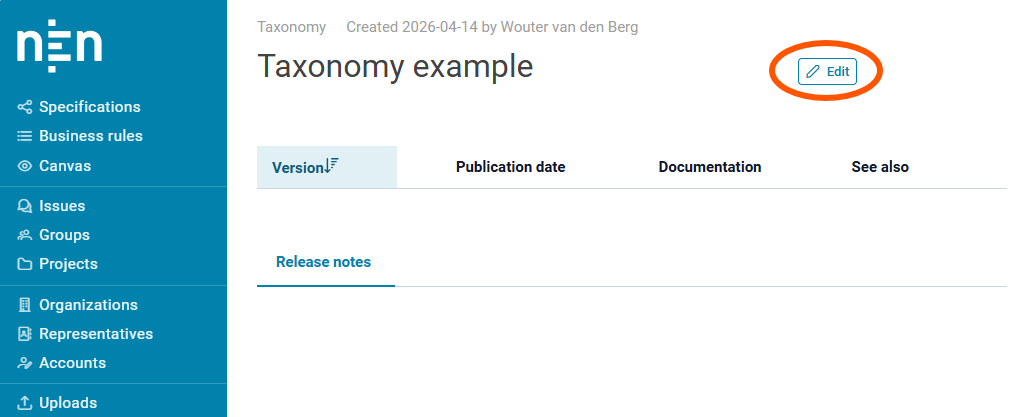
To edit a taxonomy version, open the taxonomy specification by clicking Edit on the specification page. This opens the Specification edit screen, which lists all versions. Click the pencil icon in the version row to open the version edit screen.
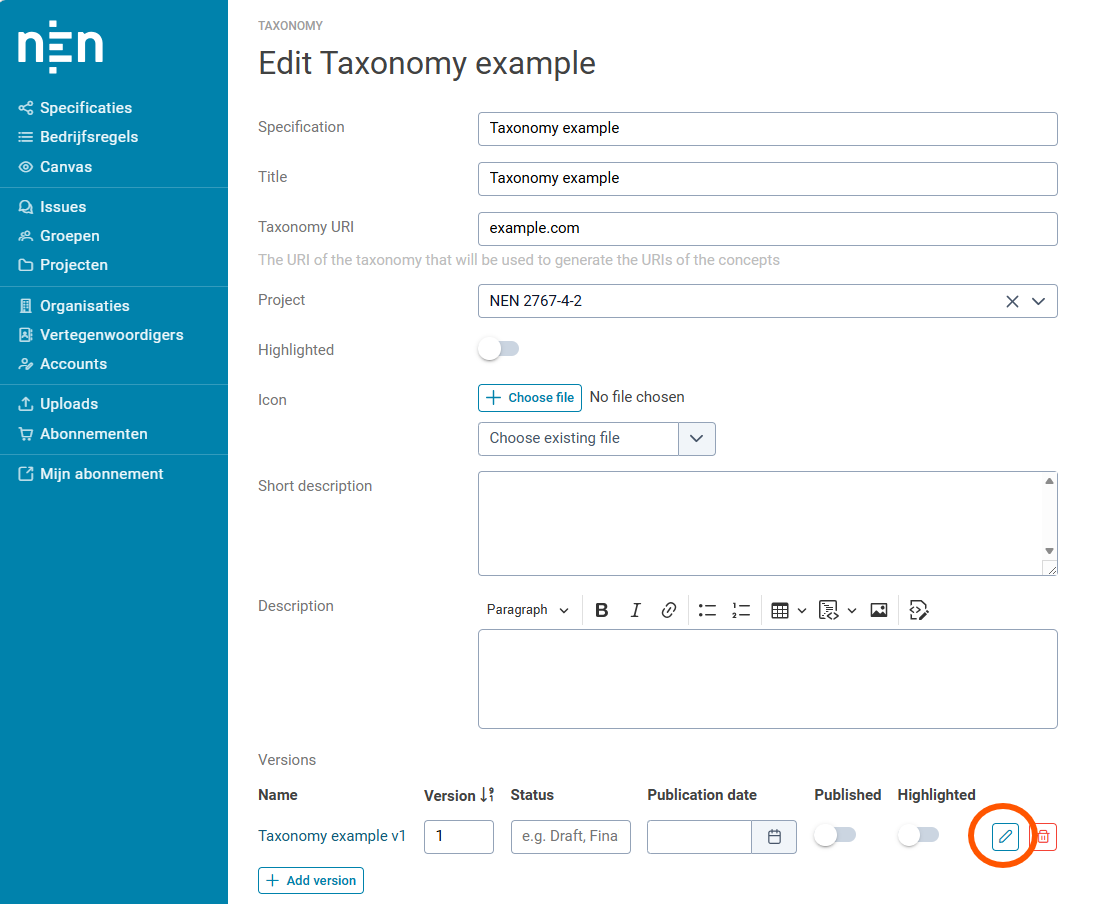
The version edit screen has five tabs:
- Version management, Release notes, Documentation, Acknowledgements: these are standard tabs shared across all specification types; see Manage specifications for details.
- Content: this is a taxonomy-specific tab for managing concepts and version configuration.
Content tab
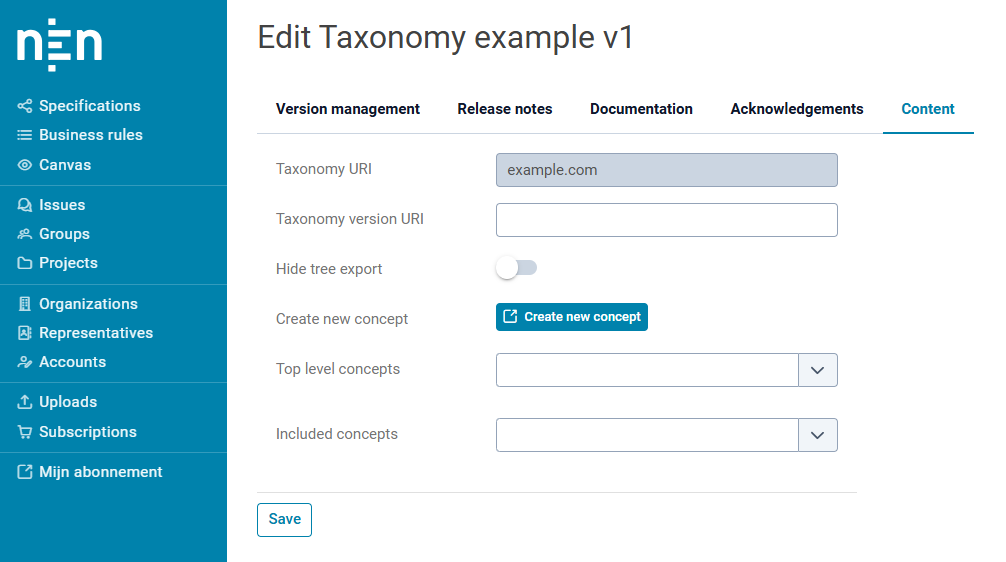
The Content tab is where you build the taxonomy. It has two parts: version configuration and concept management.
Version configuration
- Taxonomy version URI: the URI that identifies this specific version.
- Hide tree export: toggle to prevent the tree from being exported by users.
Concept management
The Content tab shows two concept lists:
- Top level concepts: the root nodes of the taxonomy tree (concepts with no broader parent in this version).
- Included concepts: all other concepts that belong to this version.
Each list has an autocomplete search field to find and add existing concepts. Use the Create new concept button to create a brand-new concept, which opens in a new tab.
Each listed concept has:
- An Edit button that opens the concept edit form.
- A Remove button that removes the concept from this version (it is not deleted globally).
Concept edit form
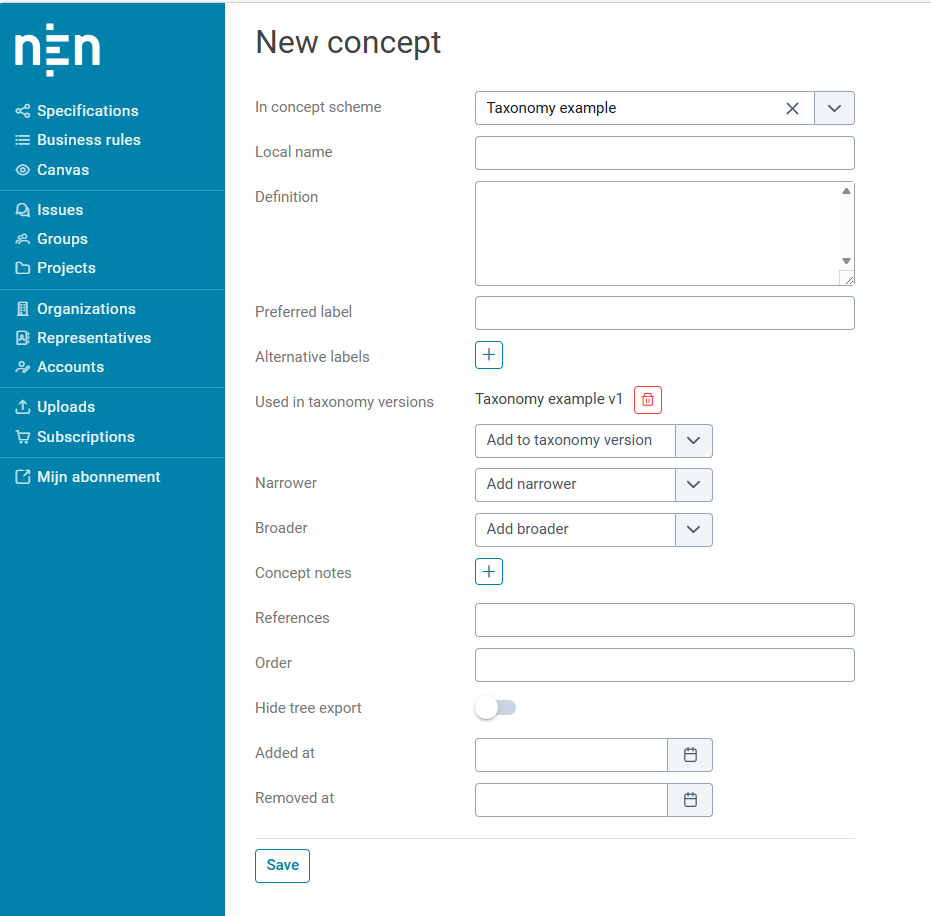
The concept edit form is where you define a concept's content and its place in the hierarchy. Key fields include:
- In concept scheme: the taxonomy (specification) this concept belongs to.
- Local name: the URI-safe local identifier for the concept.
- Definition: a textual description.
- Preferred label: the primary display name of the concept.
- Alternative labels: synonyms or variant names.
- Used in taxonomy versions: the taxonomy versions this concept is part of. Also used to filter the Narrower and Broader dropdowns (see below).
- Narrower / Broader: autocomplete fields that define the parent-child relationships in the hierarchy. There is no drag-and-drop tree editor; the tree structure is built entirely by setting these fields.
- Concept notes: free-text annotations.
- References: external URIs.
- Order: a sequence number controlling sort order within the tree (concepts are first sorted by this value, then alphabetically).
- Added at / Removed at: dates used to track when a concept was introduced or deprecated.
Concepts are scoped to one single taxonomy version and cannot be re-used across versions or different taxonomy specifications.
Filtering broader/narrower with "Used in taxonomy versions"
When editing broader or narrower relationships, the autocomplete may return concepts from multiple taxonomy versions, which can be confusing when concept names repeat across versions. The "Used in taxonomy versions" field filters the Narrower and Broader dropdowns — only concepts belonging to the selected versions will appear in search results. Set this field to the target version before editing hierarchy relationships.
For general version management (locking, publishing, highlighting), see Manage specifications.
Viewing a taxonomy in the tree view.
Each taxonomy version can be viewed as a tree. The tree view is a view where starting from the top level concepts, users can explore the taxonomy from broader towards narrower concepts.
The Tree view button navigates to the tree canvas where the taxonomy hierarchy can be explored interactively. Nodes can be collapsed and expanded; hold Ctrl while clicking to collapse or expand a node and all its descendants recursively.
Exporting a taxonomy version
Semantic Treehouse supports exporting in several formats. From the taxonomy overview the users are offered several formats of exports.
| Format | Description |
|---|---|
| Spreadsheet | Export the first 2 levels of the taxonomy as an Excel spreadsheet |
| CSV | Export the full taxonomy up to 5 levels deep as a CSV file |
| SKOS ttl | Export the full taxonomy in SKOS format as a Turtle (.ttl) file |
The level limits (2 for spreadsheet, 5 for CSV) are fixed by the platform and cannot be configured. The full version exports can be disabled for taxonomies that are of significant size, and could cause delays, or timeouts when offered. In this case, the subtree export can be a good way to still offer end users export options.
Exporting a subtree
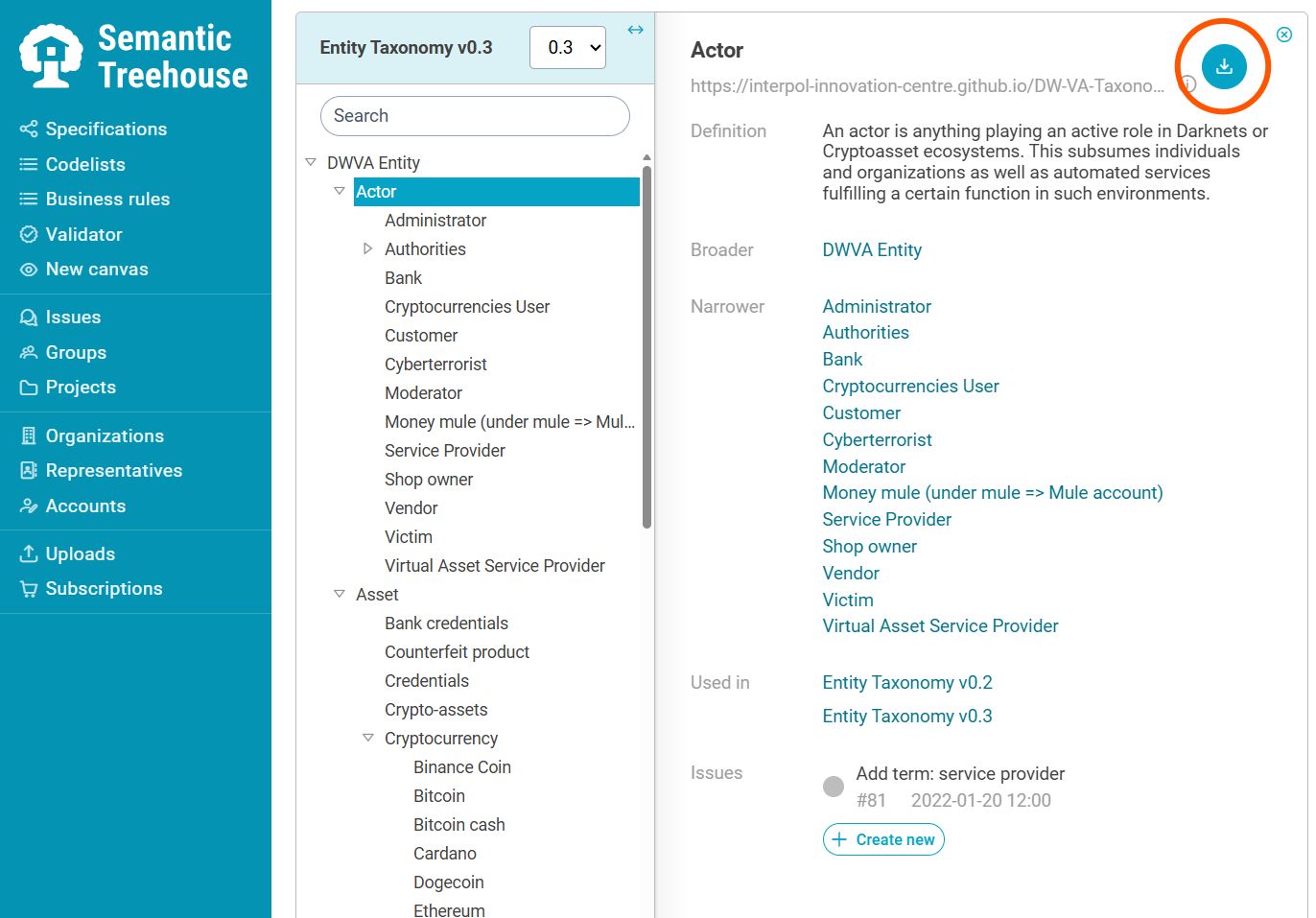
From the treeview, users can export a subset of the taxonomy starting from any concept, and drilling down a number of levels. In the tree canvas, click a concept to open the concept detail pane on the right. Click the download icon in the pane header to reveal the export option, then click CSV (Excel-compatible, max. 5 levels deep). This exports the selected concept and up to 5 levels of its descendants as a CSV file, in an Excel-friendly dialect.