Organization management
Organizations represent legal entities (companies, government agencies, standards bodies) whose members use Semantic Treehouse. Managing organizations is restricted to users with the Account Manager or Administrator role.
For an overview of how organizations relate to user accounts, representatives, and groups, see the Community management conceptual model.
Organization management requires the Account Manager or Administrator role. See Roles and permissions for details.
List of organization
Access the list of organizations by navigating to Organizations in the menu.
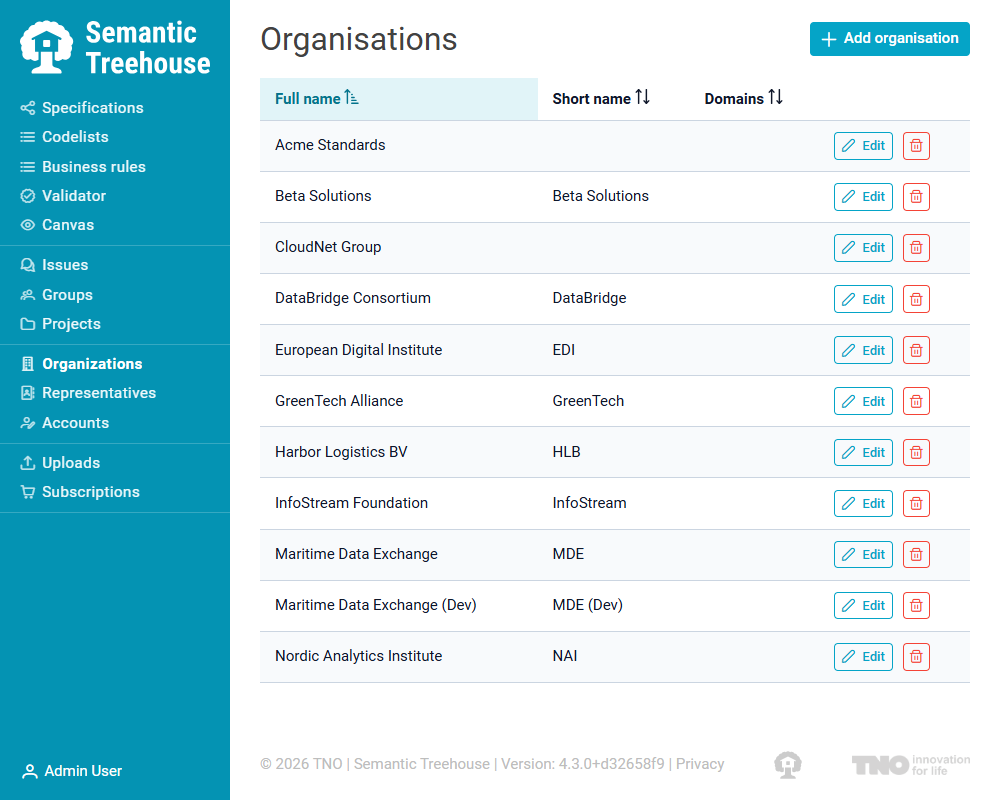
The list shows all organizations with their full name, short name, and associated domains. From here you can create new organizations, edit existing ones, or delete them.
Creating and editing an organization
Click "Add organisation" to create a new organization, or click the edit button on any existing organization. Both actions open the same form.
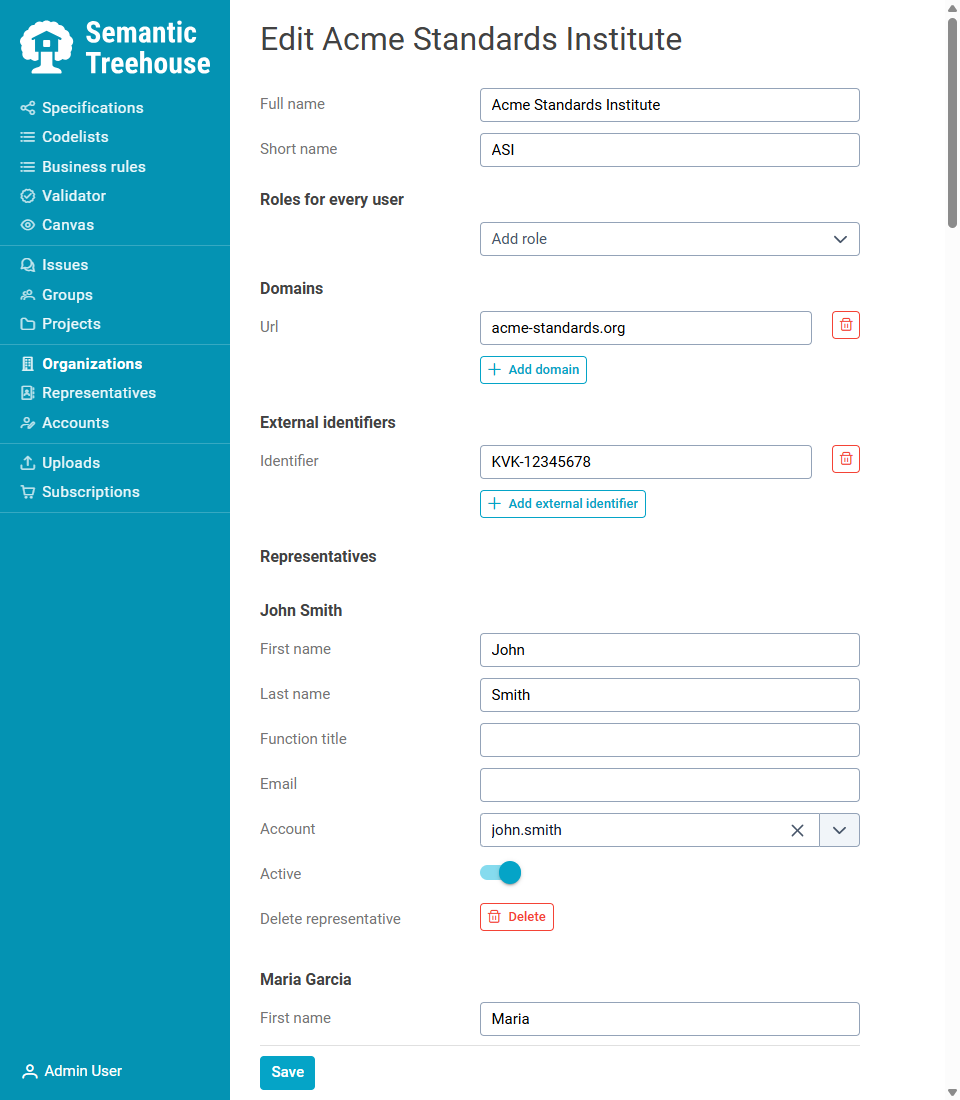
General information
- Full name: the official name of the organization.
- Short name: an abbreviation used in compact displays.
Roles for every user
Roles added here are granted to all representatives of this organization. This is useful when every member of an organization should have a certain access level (e.g., Reviewer access to a specific project).
Use the autocomplete picker to add a role, or click the remove button next to a role to revoke it.
Domains
URL domains associated with the organization (e.g., example.com). These can be used for automatic organization matching based on email domain. Click "Add domain" to add a new entry.
External identifiers
External identifiers such as VAT numbers, chamber of commerce registration numbers, or other reference codes. Click "Add external identifier" to add a new entry.
Representatives
Representatives are persons who officially represent the organization in Semantic Treehouse. Each representative has:
- First name and last name
- Function title: their role within the organization (e.g., "CTO", "Standards Manager")
- Email: contact email address
- Account: optionally link this representative to a user account. Once linked, the user inherits the organization's roles. View the Account management section for managing accounts.
- Active: toggle whether this representative is currently active.
To add a representative, click "Add representative" at the bottom of the section. To remove one, click "Delete" (requires confirmation).
Deleting an organization
From the organization list, click the delete button on any organization. A confirmation dialog appears before the deletion is finalized.
When an organization is deleted:
- Representatives are preserved and they remain in the system, but their link to the organization is removed and they are set to inactive.
- Linked user accounts are not affected; they keep their personal data and can still log in.